
Last updated: November 2026
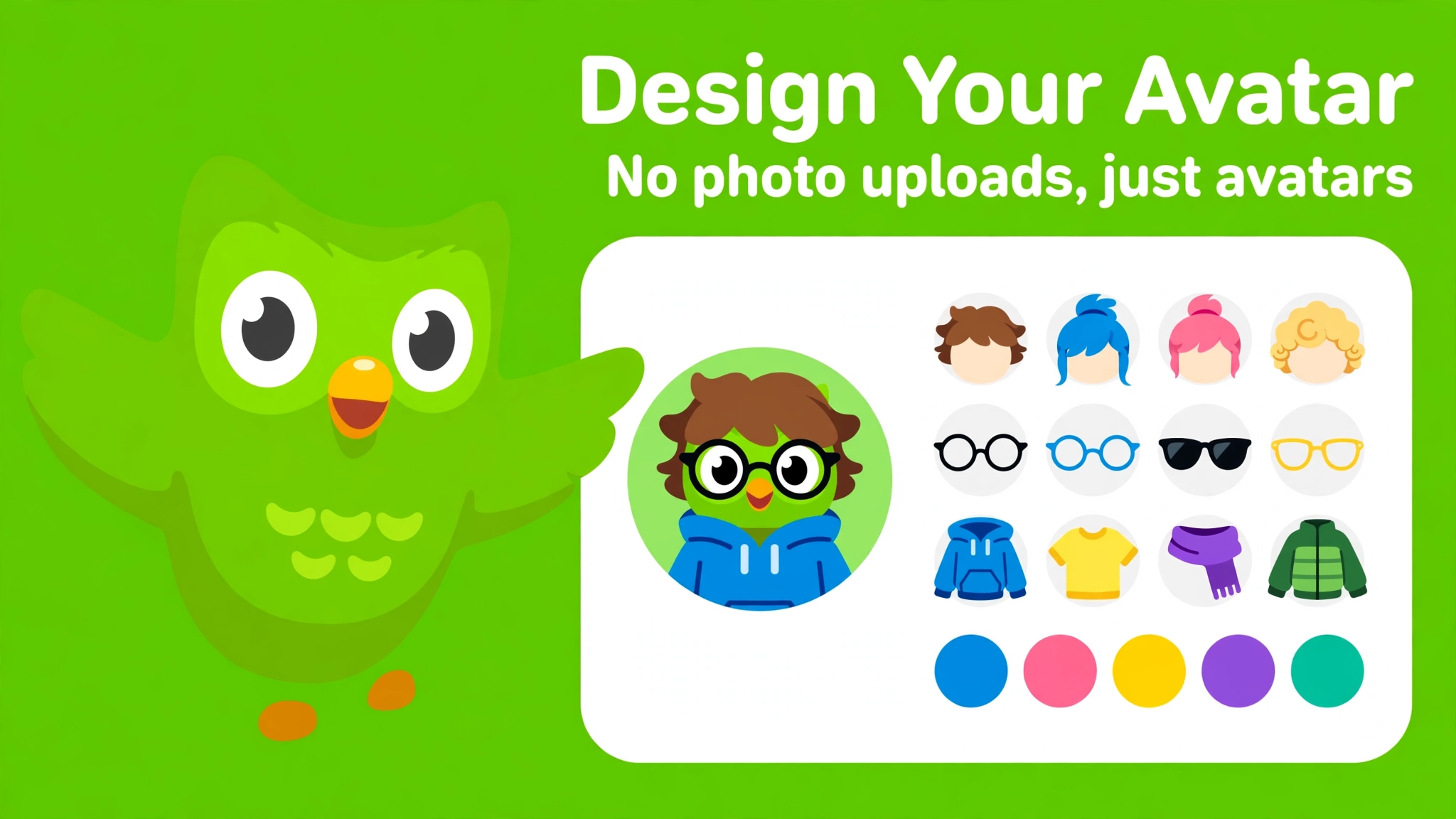
Want to change your Duolingo profile picture? Here is the answer most people do not expect: you cannot upload a photo. Duolingo removed photo uploads and replaced them with a cartoon avatar builder. Your profile picture is now an avatar that you design yourself, with your own hairstyle, skin tone, clothes, and background.
Quick answer: You cannot upload a personal photo as your Duolingo profile picture. Instead, open your profile, tap Change Avatar, and design an avatar from the choices Duolingo gives you: face, hair, skin tone, glasses, clothes, and background. Changing your avatar is free, and you can do it as often as you like.
Why You Cannot Upload a Photo on Duolingo
Duolingo used to let users upload their own profile photos. In 2023 it removed that option and moved everyone to avatars. The change was made for privacy, especially for younger learners, and to keep a single friendly look across the whole app. It also removed the need to check millions of uploaded photos.
Many older guides on the internet still show upload buttons and “choose from gallery” steps. Those guides are out of date. As of November 2026, there is no upload option in the Duolingo app or on the website. If a guide tells you to upload a photo, do not follow it.
How to Change Your Duolingo Profile Picture on the App
The avatar builder lives on your profile screen. These steps work on both iPhone and Android:
- Open the Duolingo app and make sure it is updated to the latest version.
- Tap the profile icon at the bottom of the screen. On some versions the tab shows your avatar instead of a plain icon.
- On the avatar screen, tap the + icon or the settings gear to open the avatar builder.
- Tap Change Avatar if you see that option.
- Design your avatar with the tools on screen: skin tone, eye color, hair style and color, facial features, glasses, headwear, clothing, and background color.
- Tap Done to save. Your new avatar appears on your profile right away.
The builder saves your changes as soon as you tap Done. Your friends and league rivals will see the new avatar the next time your profile loads for them.
How to Change Your Duolingo Profile Picture on the Website
If you prefer a computer, you can change your avatar in a web browser too:
- Go to duolingo.com and sign in to your account.
- Click your profile picture or avatar at the top right of the page.
- Choose Settings from the drop-down menu.
- Look for the Change Avatar option.
- Use the avatar builder to change your look, then click Save or Done.
The same avatar shows on the app and the website, because it is saved to your account. Change it in one place and it updates everywhere.
What Can You Customize in Your Duolingo Avatar?
The avatar builder gives you plenty to play with. You are not picking from a few fixed faces; you are building one from parts:
| Part you can change | Choices you get |
|---|---|
| Skin tone | A range of skin tones |
| Hair | Styles and colors, including fun and bright colors |
| Eyes and face | Eye color and facial features |
| Glasses and headwear | Glasses, hats, and other headwear |
| Clothing | Outfits and colors |
| Background | Background colors for the round profile picture |
Duolingo adds new avatar items from time to time, often around holidays and seasons, so it is worth checking the builder now and then if you like fresh looks. Your avatar also appears next to your name in leagues and on friend leaderboards, so it is how other learners recognize you.
Is Changing Your Duolingo Avatar Free?
Yes. Changing your avatar is free for all users. You do not need Super Duolingo or any paid plan to open the avatar builder or to change your look. There is also no limit on how often you can change it. Update it every day if you like.
We could not confirm whether any single avatar item is locked behind Super, since Duolingo does not publish a list of avatar items and their prices. In practice, the builder works the same for free and paying users, and the avatar itself is not a Super feature.
Ideas for a Profile Picture That Stands Out
Since everyone uses the same builder, a few small choices make your avatar easy to spot:
- Match your language. Learning French? Try blue, white, and red. Learning Japanese? A red and white theme stands out in a league list.
- Pick one bold feature. Bright hair, unusual glasses, or a strong background color makes your avatar easy to find at a glance.
- Change it to mark a win. Many learners update their avatar when they finish a section, hit a streak milestone, or start a new language.
- Keep it simple. The picture is small on most screens. One or two strong choices read better than five small details.
Troubleshooting: Avatar Problems and Fixes
| Problem | What to try |
|---|---|
| No Change Avatar option | Update the app to the latest version, then check the profile screen again |
| Avatar does not save | Check your internet connection, then close the app fully and reopen it |
| Old avatar still shows | Wait a few minutes and refresh your profile; other people’s apps can take a while to update |
| Builder will not load on the website | Use a modern browser such as Chrome, Firefox, or Edge, and clear your cache |
| Avatar looks different on another device | Sign out and sign back in on that device to force a fresh sync |
If nothing works, uninstalling and reinstalling the app is the last resort. It does not delete your account or progress, since everything is saved online, but you will need to sign in again.
Your Avatar, Your Profile, and Your Privacy
Your avatar is public to other Duolingo users in leagues and on leaderboards, along with your username and streak. It never shows your real face, which is the point of the system: you can be recognized by friends without sharing a photo of yourself. Children and younger learners get the same protection by default.
If you want to change anything else about how you appear, your username and profile settings live in the same Settings area as the avatar builder. Changing your avatar does not change your username, your streak, or your progress in any way.
Where Other People See Your Avatar
Your avatar is not just for you. It shows up next to your username everywhere other learners can see you. That includes your league leaderboard, where you compete against about 30 other learners each week, and your friends list, where friends check each other’s progress and streaks.
Because the picture is small on most screens, a clear and bold avatar is easier for friends to spot than a detailed one. If you and a friend both use similar default-looking avatars, it is easy to mix you up in a busy league list. Changing one strong feature, such as a bright background or unusual hair color, is usually enough to make your avatar stand out.
Your avatar does not show your real name, your email address, or any personal details. Other learners only see the avatar, your username, your streak, and your league position. If you ever want a fresh identity in leagues, changing your avatar is the fastest way to do it, and it costs nothing.
Frequently Asked Questions
Can I upload my own photo as my Duolingo profile picture?
No. Duolingo removed photo uploads in 2023. The avatar builder is the only way to set a profile picture, on both the app and the website.
How do I change my Duolingo profile picture on iPhone?
Open the app, tap the profile tab at the bottom, open the avatar builder with the + or gear icon, tap Change Avatar, design your look, and tap Done.
How do I change my Duolingo profile picture on Android?
The same way as on iPhone: profile tab, avatar builder, Change Avatar, then Done. The steps are the same on both systems.
How often can I change my Duolingo avatar?
As often as you like. There is no limit and no cost. Change it daily, weekly, or only when you feel like a new look.
Do I need Super Duolingo to change my avatar?
No. The avatar builder is free for everyone. Super adds other features, such as unlimited Energy and no ads, but your profile picture is not one of them.
Why does my old profile photo not show anymore?
Because Duolingo replaced photos with avatars in 2023. Any photo uploaded before that change was removed, and every account now uses an avatar. Design a new one with the steps above.