
Last updated: November 2026
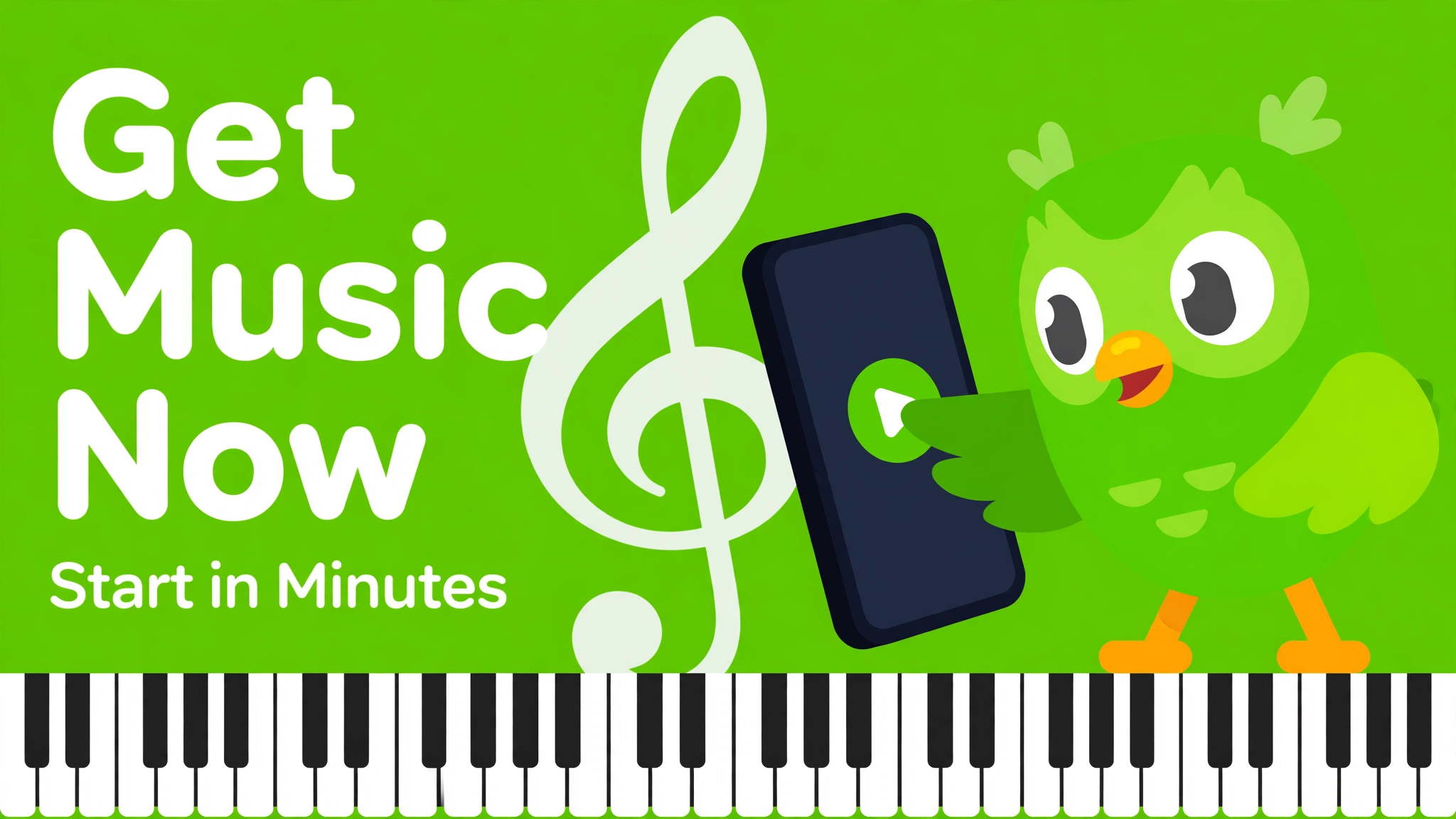
Getting Duolingo Music takes about a minute. There is no waitlist anymore and no invitation to wait for. Open the Duolingo app, tap the flag icon, choose Music from the course list, and start your first lesson. This guide walks you through the steps on mobile and on the web, explains what happens after you start, and shows you how to fix it if Music does not show up.
If you only want to know whether Music is available where you live, read our guide on whether Duolingo Music is available now. The short version: it launched in October 2023, reached all iOS learners in early 2024, and came to Android in October 2024, so it is available now on both platforms.
What You Need Before You Start
Duolingo Music has almost no requirements. You need the Duolingo app, a free Duolingo account, and a phone or tablet with the latest version of the app installed. You do not need a piano, a keyboard, or any musical experience. You do not need Super, and you do not need to pay anything.
- The Duolingo app: Music lives inside the main Duolingo app. There is no separate Music app to download.
- The latest version: Update Duolingo from the App Store or Google Play before you look for Music. Old versions may not show it.
- A free account: If you already use Duolingo for a language, you already have everything you need. Music is just another course on the same account.
- No instrument: All lessons use an on-screen piano keyboard built into the app.
How to Get Duolingo Music on Mobile
These steps work on both iPhone and Android. The screens look slightly different between the two, but the flow is the same.
- Open the Duolingo app and make sure you are signed in.
- Update the app first if you have not done so recently. Go to the App Store or Google Play, search for Duolingo, and tap Update if one is available.
- Tap the flag icon at the top of the home screen. This opens the course menu, where all languages and subjects are listed.
- Find Music in the list. Scroll through the courses until you see Music, with the music note icon. Tap it.
- Answer the starting questions. Duolingo will ask whether you know anything about music already. Answer honestly: this helps the app place you at the right starting point.
- Start your first lesson. Tap Start and work through the first lesson. It will teach you your first notes on the on-screen keyboard.
That is all there is to it. From now on, Music appears on your home screen as a course you can switch to at any time. Tap the flag icon again whenever you want to switch back to a language course, or to switch between Music and another subject.
How to Get Duolingo Music on the Web
You can also add Music from a computer, though the main experience is on mobile.
- Go to duolingo.com and sign in to your account.
- Click Add a new course in the course menu.
- Select Music from the list of courses.
- Click Start Course and complete the first lesson.
Your progress syncs between the website and the app, since both use the same account. But the on-screen keyboard and the full lesson experience work best on a phone or tablet, so most learners do Music on mobile even if they add it on the web.
What Happens After You Start?
Music works like a language course. It is broken into units and levels, and each unit focuses on one idea: finding notes on the keyboard, matching pitch, playing a rhythm, or learning a song. The lesson types include:
| Lesson Type | What You Do |
|---|---|
| Find the note | See a note on the staff and tap the matching key on the on-screen piano. |
| Match the pairs | Match notes, sounds, or symbols that belong together. |
| Play the rhythm | Tap keys in time with the beat, learning note lengths as you go. |
| Play a song | Play a full song on the keyboard and get a score out of 1,000 for pitch and rhythm accuracy. |
| Free play | Use the Instrument Tab to play the on-screen piano freely, outside of lessons. |
Music lessons earn XP just like language lessons, so they count toward your daily goal, your streak, and your league rank. After the February 2025 reorganization, the course has 274 units and more than 200 songs, including popular songs. The course teaches treble clef reading only: bass clef content was removed in that update, so it covers roughly the right-hand part of piano music.
Do You Need to Know Music Already?
No. Music is designed for complete beginners. The first lessons assume you know nothing: they show you one note, show you where it lives on the keyboard, and let you play it. If you already know some music, the starting questions help Duolingo place you further along, so you do not have to repeat the very basics.
If you already read sheet music, be aware of the ceiling. Music teaches basic treble clef note reading, rhythm, and simple melodies. It does not teach chords, scales, or bass clef, and it will not take you to an advanced level. For a total beginner, though, it is a friendly and free way to start.
Is Duolingo Music Free?
Yes. The full Music course is free for every learner. The free version has ads and the usual hearts or Energy limit on mobile, so if you run out of hearts you will need to wait or practice to refill them. Super removes the ads and the hearts limit, but it does not unlock any extra Music content. Super costs about $12.99 to $13.99 per month or about $83.99 to $119.99 per year in the US, though Duolingo publishes no fixed price list and prices can vary.
Can You Use a Real Piano With Duolingo Music?
No, not inside the app. Duolingo Music is built around the on-screen keyboard, and it does not officially support a real piano or a connected keyboard. You cannot plug in a keyboard or have the app listen to your piano.
That said, what you learn still transfers. The note reading, rhythm, and pitch skills you build on the screen work the same way on a real piano. Many learners use Music to learn the basics and then practice the same songs on a real instrument by themselves. The app just will not track that practice for you.
How to Get the Most Out of Duolingo Music
- Practice a little every day. Short daily sessions build note reading far better than one long session a week. Music counts toward your streak, so it can keep your habit alive on days when you skip your language.
- Say the note names out loud. When you tap a key, say its name. It sounds simple, but it makes the link between the staff, the key, and the name much stronger.
- Replay songs to raise your score. After each song you get a score out of 1,000. Replaying a song to beat your last score is good rhythm practice, and it is more fun than repeating drills.
- Use free play. The Instrument Tab is easy to ignore, but playing freely for a few minutes after a lesson helps the notes stick. Try playing a song you just learned without the scrolling notes.
- Do not rush past the basics. Note reading feels slow at first, and that is normal. The speed comes with repetition. Skipping ahead to songs before you know the notes will only frustrate you.
Duolingo Music Not Showing Up? How to Fix It
If you have followed the steps above and Music still does not appear, work through this checklist:
- Update the app. This fixes the problem most of the time. An old version may not include the Music course at all.
- Close and reopen the app. Fully close Duolingo and open it again. A fresh start often makes a new course appear.
- Check the course menu again. Tap the flag icon and scroll the whole list. Music is listed among the courses, not in settings.
- Check your app language. Music launched in English and Spanish first and later expanded to most app languages. If your app is set to a language that does not support Music yet, such as Arabic, which was reported as unsupported in early 2025, try switching the app language to English.
- Check your device. Music needs a reasonably recent version of iOS or Android. If your phone cannot run the latest Duolingo update, the course may not appear.
- Wait for the rollout. Duolingo still releases some features gradually by account. If everything is up to date and Music is still missing, it may not have reached your account yet. Check again after the next app update.
Frequently Asked Questions
How do I get Duolingo Music?
Open the Duolingo app, tap the flag icon at the top of the home screen, choose Music from the course list, and start your first lesson. There is no waitlist and no invitation needed.
Is Duolingo Music on Android?
Yes. Music came to Android in October 2024. If you have an Android phone with the latest Duolingo update, Music should appear in the course menu.
Do I need Super to use Duolingo Music?
No. Music is free for all learners. Super only removes ads and the hearts or Energy limit. It does not unlock extra Music lessons.
Do I need a piano to learn Duolingo Music?
No. All lessons use an on-screen piano keyboard inside the app. You do not need any instrument.
Can I learn guitar on Duolingo Music?
No. Duolingo Music teaches piano only. There is no guitar course in the app.
Can I use Duolingo Music on my computer?
You can add Music as a course on duolingo.com, and progress syncs with the app. But the full experience, including the on-screen keyboard, works best on a phone or tablet.
Does Duolingo Music count toward my streak?
Yes. Music lessons earn XP just like language lessons, so they count toward your daily goal, your streak, and your league rank.
Starting Duolingo Music is the easy part. It takes one tap in the course menu and about a minute of your time. The harder part is the same as with any instrument: showing up every day, even when the notes feel slow. Do that, and a few weeks from now you will be reading music you could not read today.




One Comment