
Last updated: November 2026
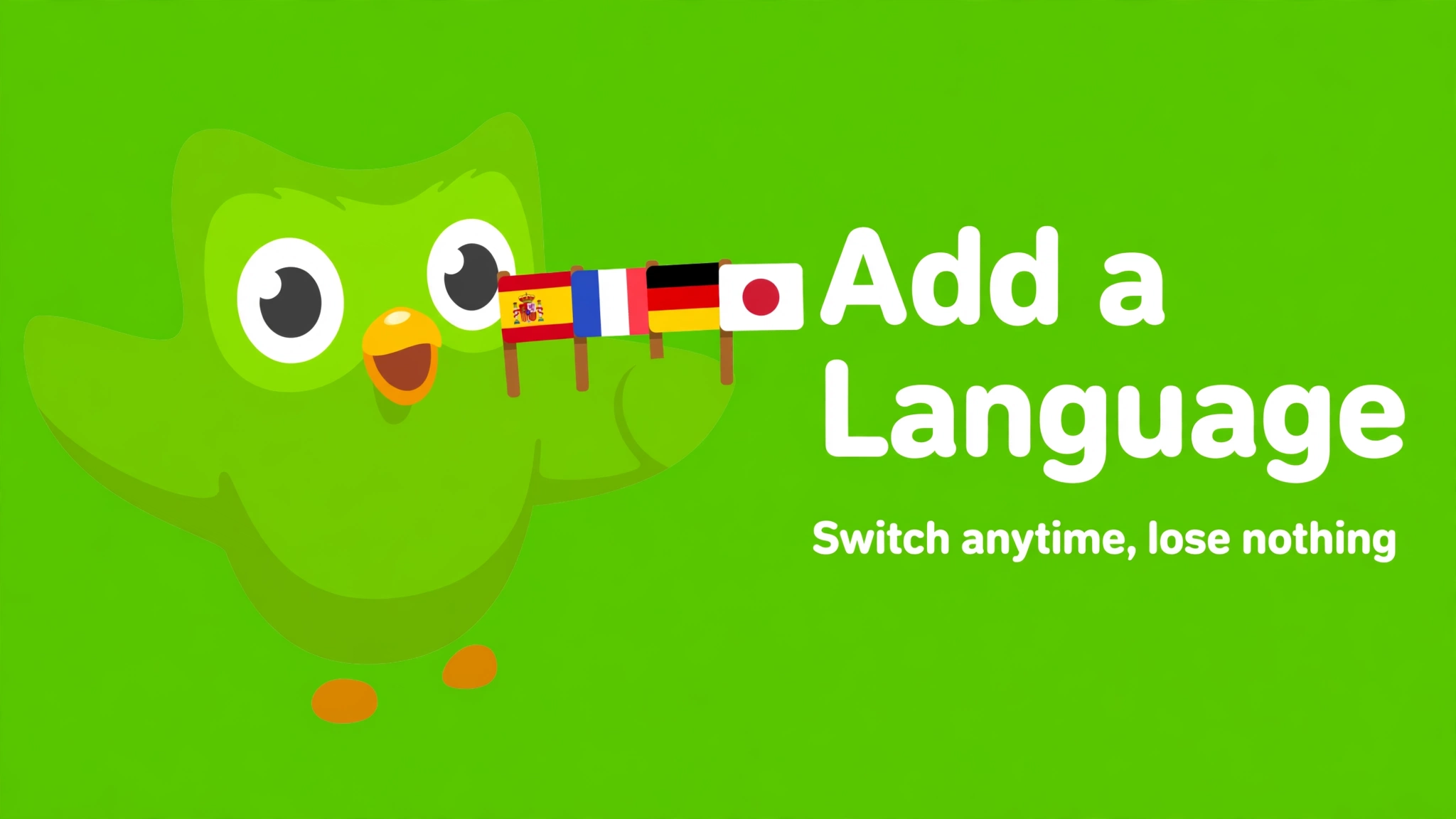
Want to learn a second language on Duolingo, or a third, or a fourth? You can add as many languages as you like to one account, and switch between them whenever you want. Adding a language takes less than a minute, and your progress in your other languages stays exactly where it was.
Quick answer: On the app, tap the flag icon at the top of the home screen, tap the + sign, pick a language, and choose your starting level. On the website, click the flag icon and choose Add a new course. Each language is tracked separately, so adding a new one never deletes your progress in another.
How to Add a Language on the Duolingo App
These steps work on both iPhone and Android. The buttons can look slightly different depending on your app version, so update the app first if you cannot find them.
- Open the Duolingo app and make sure you are signed in to the right account.
- Go to the home screen and tap the flag icon at the top. The flag shows the language you are learning right now.
- A list of your languages appears. Tap the + sign, sometimes shown as + Course.
- Browse the list of languages and tap the one you want to learn. You can also search for it by name.
- Duolingo asks a few short questions, such as how much of the language you already know.
- Choose your starting point: start from the beginning, or take a placement test to skip the parts you already know.
- Finish the first short lesson. The new language is now added to your account.
If the + sign does not appear, check three things: you are signed in to the correct account, your app is updated to the latest version, and your internet connection is working. Closing the app fully and opening it again also fixes this for many people.
How to Add a Language on the Duolingo Website
Adding a language on a computer works almost the same way, and it is often the easiest option if the app is acting up.
- Go to duolingo.com and sign in to your account.
- Click the flag icon at the top right of the page.
- From the drop-down menu, select Add a new course.
- Choose the language you want to learn from the list.
- Pick your level, then click Start or Continue.
- Complete the first lessons. The course now appears in your course list on every device.
Courses you add on the website show up in the app right away, and the other way round, because everything is saved to your account, not to one device.
How to Switch Between Languages on Duolingo
Once you have more than one language, switching takes seconds:
- Tap or click the flag icon at the top of the home screen.
- You will see every language you have added, each with its own flag.
- Tap the language you want to study. The home screen changes to that course, with its own lessons, progress, and daily goal.
Switching does not delete or pause anything. Duolingo saves your place in each course separately, so you can do Spanish in the morning and French in the evening without losing a single lesson.
What Happens When You Add a New Language?
Adding a language only adds a new course. It does not change anything else on your account. Here is what stays the same and what starts fresh:
| What changes | What stays the same |
|---|---|
| The new course starts at the beginning, or at your placement test result | Your streak, which is counted for your whole account |
| The new course has its own lesson path and its own XP | Your progress, XP, and level in every other language |
| Your daily goal can be set separately for the new course | Your gems, friends, achievements, and Super subscription |
| League XP now comes from all your courses combined | Your profile, avatar, and username |
Your streak is the part most people worry about. It is tied to your account, not to one language. As long as you earn XP in any of your courses that day, your streak keeps going. So if you add Japanese and only do one Spanish lesson, your streak is still safe.
Start From the Beginning or Take the Placement Test?
When you add a language, Duolingo asks how much you already know. Your answer decides where you start:
| Starting option | Best for | What happens |
|---|---|---|
| Start from the beginning | Complete beginners, or anyone returning after a long break | You begin at Unit 1 and work through every lesson in order |
| Placement test | People who already speak some of the language | A short test places you further along the path, skipping the basics you already know |
If you are not sure, start from the beginning. The early lessons are short, and you can move through them fast. If the placement test puts you too far ahead, or too far behind, you can still redo earlier lessons for free at any time by tapping a finished unit on your path. You can also restart a language on Duolingo later and pick the other option.
Learning the Same Language From a Different Language
Duolingo lets you learn a language from more than one starting language. For example, you can learn Spanish from English, and also learn Spanish from French. These are two separate courses, even though the target language is the same.
This is useful if you already speak two languages and want to use one to strengthen the other. It also unlocks courses that may not exist from English. Some languages have more lessons, or different lessons, when learned from another language.
To do this, add the language the same way as above, and choose the language you speak as the base language when Duolingo asks. Just remember to switch to the right course with the flag icon before you start a lesson, or your XP will go to the wrong course.
How Many Languages Can You Learn at Once?
Duolingo does not publish a limit on how many languages you can add to one account, and learners commonly keep several active at once. The real limit is your time and focus, not the app.
Learning two languages at once works well for most people. Three or more can get confusing, especially if the languages are similar, like Spanish and Italian, because words and grammar start to mix. A few tips help:
- Give each language its own time. Spanish in the morning and German in the evening works better than switching every five minutes.
- Keep one main language. Make one language your priority, and treat the others as a side project with a smaller daily goal.
- Set a small daily goal for each. Even 10 XP a day keeps a course moving and keeps your streak alive.
- Use the placement test honestly. Starting too far ahead in a new language makes it feel harder than it is.
Duolingo offers 40+ languages and 250+ courses, including less common ones like Welsh, Navajo, Hawaiian, and even fictional languages like Klingon and High Valyrian. The biggest courses, such as Spanish, French, German, Italian, Portuguese, Japanese, Korean, and Chinese, now teach up to a Duolingo Score of 129, which equals CEFR level B2.
How to Remove a Language From Duolingo
If a language is no longer a priority, you can remove it from your account in Settings under Manage Courses. Be careful: removing a course permanently erases your progress and XP in that course, and it cannot be undone. Your other languages, your streak, and your account are not affected. Read our full guide on how to reset Duolingo before you remove anything, so you know exactly what you will lose.
Frequently Asked Questions
Can I add a second language on Duolingo for free?
Yes. Adding languages is free. You do not need Super Duolingo or any paid plan to learn more than one language. Paid plans remove ads and add extra features, but they do not unlock extra languages.
Does adding a new language delete my progress?
No. Adding a language never deletes progress. Each course is saved separately, so your old languages stay exactly as you left them. Only removing a course deletes progress.
Can I learn two languages at the same time on Duolingo?
Yes. Add both languages, then switch between them with the flag icon. Your streak counts XP from any course, so a lesson in either language keeps your streak alive.
Why can I not find the language I want?
First, check that your app is updated and that you are signed in to the right account. Second, check your base language: not every language is offered from every starting language. If a course is not offered from English, try adding it from another language you speak. If it still does not appear, Duolingo may not offer that course yet.
Can I change the language I am learning without adding a new one?
Switching to a language you already added is the same as changing your active language: tap the flag and pick the course. If the language is not in your list yet, you need to add it first with the steps above.
Does Duolingo have a limit on languages per account?
Duolingo does not publish a limit, and learners commonly run several courses on one account. In practice, most people find two or three active languages manageable, and more than that hard to keep up with every day.