
Last updated: November 2026
Duolingo sometimes shows an error code instead of your lesson. The number looks technical, but it is really a short message about what went wrong: your device, your connection, or Duolingo’s own servers. Once you know which of the three it is, the fix is usually simple.
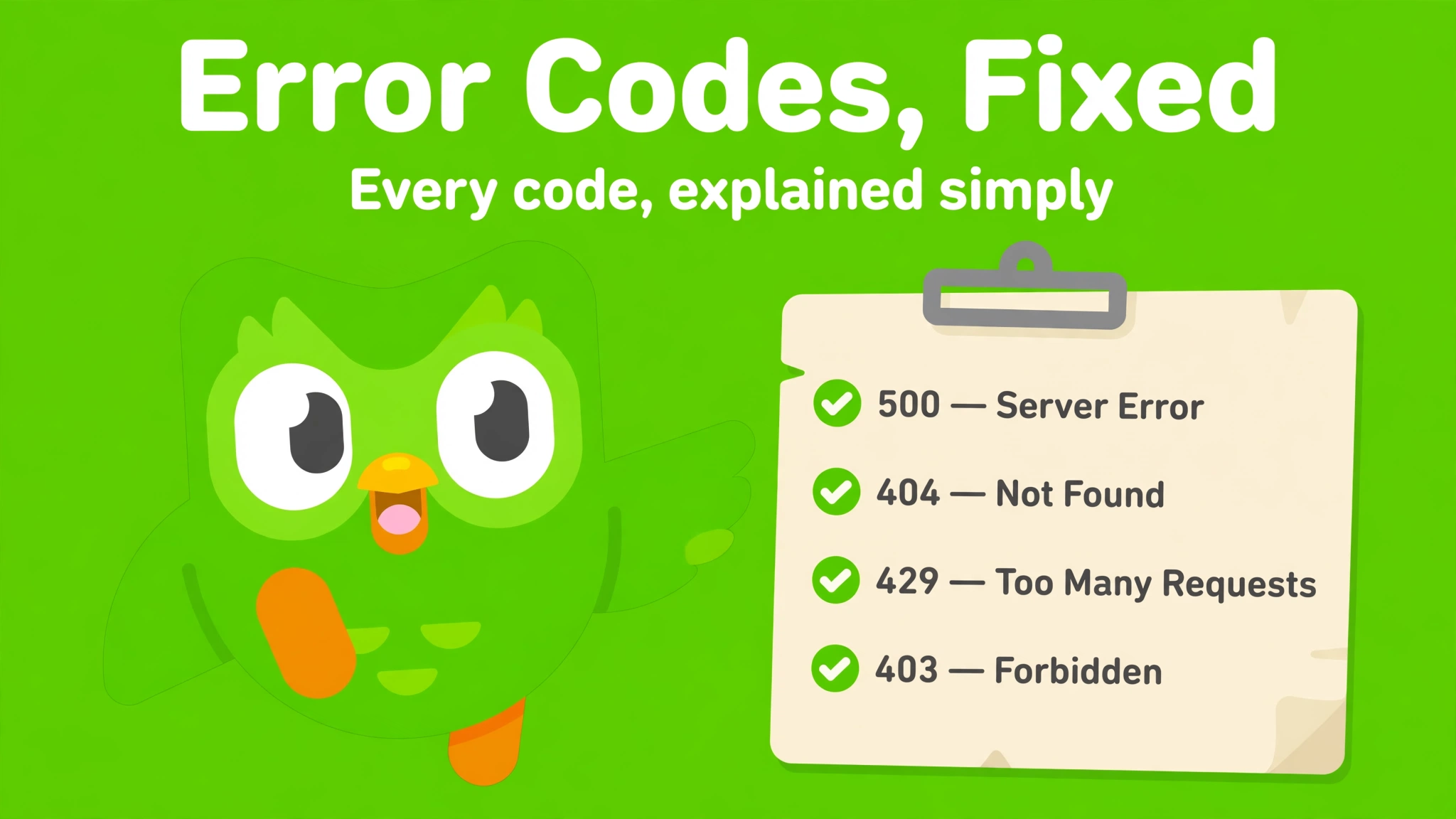
This guide is the hub for Duolingo error codes. It explains the codes you are most likely to see, what each one means, and the fixes that work for each. For the single most common code, Error 500, we also have a dedicated guide: Duolingo Error Code 500: what it means and how to fix it.
First: Is It You, or Is It Duolingo?
Before you read any code, answer one question: is Duolingo itself down? That decides everything else.
- Open status.duolingo.com — Duolingo’s official status page. If it shows an incident, the problem is on Duolingo’s side. Wait and try again later.
- Try Duolingo on a different device or a different network (mobile data instead of Wi-Fi). If it works there, the problem is with your first device or network.
- Try another website or app. If everything is slow or broken, your internet connection is the problem, not Duolingo.
Duolingo does have real outages. The status page reported increased errors on 21 October 2026 and again on 26–27 October 2026, both fixed within hours. If your error appears during an outage, no setting on your phone will fix it.
Duolingo Error Codes at a Glance
| Code or message | What it means | Whose side? | First fix |
|---|---|---|---|
| Error 500 | Internal Server Error — something failed on Duolingo’s servers | Duolingo | Check status page, wait, then clear cache and retry |
| Error 502 | Bad Gateway — one Duolingo server got a bad reply from another | Duolingo | Refresh and wait; check status page |
| Error 503 | Service Unavailable — Duolingo is overloaded or in maintenance | Duolingo | Wait and try again later |
| Error 504 | Gateway Timeout — a server took too long to answer | Duolingo (often) | Refresh, check connection, retry later |
| Error 404 | Not Found — the page or lesson you asked for does not exist | Usually yours | Check the link, clear cache, sign in again |
| Error 429 | Too Many Requests — you sent requests too fast and were rate-limited | Yours | Stop retrying, wait a few minutes, try once |
| Error 403 | Forbidden — you are not allowed to open that page or feature | Usually yours | Sign in again, check account and subscription |
| “Something went wrong” / “Try again later” | A generic error — Duolingo does not say which part failed | Either side | Restart app, clear cache, check status page |
| “Unexpected Application Error” | The app crashed on a page or lesson, often after an update | Either side | Update or reinstall the app, clear cache |
Server Errors: 500, 502, 503, and 504
Codes starting with 5 mean the problem is on Duolingo’s side. Your device asked correctly, but Duolingo’s servers could not answer properly.
Error 500 (Internal Server Error) is the most common of these. It means the server hit a problem it could not handle — overload, a bug in a new update, or maintenance. Error 502 (Bad Gateway) means one server passed your request to another server and got a bad reply back. Error 503 (Service Unavailable) means Duolingo is temporarily down for maintenance or is overloaded. Error 504 (Gateway Timeout) means a server took too long to answer.
The fix is the same for all four:
- Check status.duolingo.com. If there is an incident, wait.
- Refresh once or restart the app. A single failed request often works on the second try.
- Clear your browser cache and cookies, or clear the app cache on Android. On iOS, reinstall the app.
- Try a different network. If the error follows you everywhere, it is Duolingo’s problem, not yours.
- If it lasts more than a day, contact support at support.duolingo.com.
For the full step-by-step version, see our dedicated guide to Error Code 500.
Client Errors: 404, 429, and 403
Codes starting with 4 mean the problem is on your side — with the request your device sent, not with Duolingo’s servers.
Error 404 (Not Found) means Duolingo could not find the page, lesson, or course you asked for. It usually comes from an old bookmark, a broken link, or a course or page that was removed or renamed. Try going to duolingo.com and navigating to the lesson from the home screen instead of the old link. If the whole website shows 404, clear your cache and sign in again.
Error 429 (Too Many Requests) means you sent too many requests too quickly and Duolingo’s server told you to slow down. This often happens after hammering the refresh button or the login button during another error. The fix is to stop: close the app or tab, wait a few minutes, and try once. Do not keep retrying — every retry counts against the limit and makes the wait longer.
Error 403 (Forbidden) means the server understood your request but refused it. On Duolingo this usually means a login problem: you are signed out, your session expired, or you are trying to open something your account cannot access. Sign out and sign in again, check that your email and password are correct, and check whether the feature needs a paid plan. Super costs about $12.99 a month or about $83.99 a year in the US, and some features — such as unlimited Energy and no ads — are Super-only. But lessons themselves are free, so a 403 on a normal lesson is a login problem, not a payment problem.
Generic Messages: “Something Went Wrong” and “Try Again Later”
Not every Duolingo failure comes with a number. “Something went wrong,” “An error occurred, try again later,” and “Unexpected Application Error” are generic messages that hide the real cause. Treat them with the standard fix sequence:
- Check the status page.
- Force-close the app or refresh the browser.
- Clear cache and cookies (browser) or app cache (Android), or reinstall the app (iOS).
- Update the app and your browser to the latest versions.
- Switch networks — Wi-Fi to mobile data, or the other way round.
- Sign out and sign in again.
If the message appears on one specific lesson and everything else works, the lesson itself may be broken. Skip it, do a different lesson, and report it through in-app Help. If it appears everywhere, it is usually a server problem or a bad app update, and waiting for a fix is the right move.
Network and Connection Errors
Duolingo needs a steady internet connection. If your connection drops mid-lesson, you can see a connection error, a failed sync, or a lesson that will not load. This is not a numbered code — it is your network.
| Symptom | Likely cause | Fix |
|---|---|---|
| Lessons will not load | Weak or unstable connection | Move closer to the router, switch to mobile data, restart the router |
| Progress does not sync between devices | One device was offline when you finished | Open Duolingo on both devices with a good connection and wait a minute |
| App works on mobile data but not Wi-Fi | The Wi-Fi network blocks Duolingo | Use mobile data, or ask the network owner; school and office networks often block it |
| Errors only with a VPN on | The VPN interferes with Duolingo’s connection | Turn the VPN off and try again |
App Errors: Crashes, Freezing, and Update Problems
If Duolingo crashes on launch, freezes mid-lesson, or misbehaves right after an update, the app itself is the problem:
- Update the app in the App Store or Play Store. A crash that starts after an update is often fixed by the next update within a day or two.
- Clear the cache on Android (Settings > Apps > Duolingo > Storage > Clear cache). On iOS, delete and reinstall the app.
- Restart your phone. This clears temporary memory problems that can make the app freeze.
- Check your phone’s storage. If your phone is almost full, apps crash and fail to update. Free up space and try again.
- Reinstall as a last step. Your progress is tied to your account, so reinstalling is safe — just make sure you know your login details first.
Audio and Microphone Errors
If lessons load fine but speaking exercises do not hear you, that is not a server error — it is a permission or audio problem. The most common causes are a blocked microphone permission, a Bluetooth headset taking over the audio input, or an out-of-date speech service on Android. We cover the full fix list in our guide to why your Duolingo microphone is not working.
Login Errors
Login errors deserve their own check, because they mix several causes. If you cannot sign in at all, check the status page first — Error 500 during login is usually an outage. Then check that your email and password are right, reset your password if you are unsure, and try a different browser or device. If you signed up with Google, Apple, or Facebook, use that same button to sign in instead of typing a password. If login fails on every device after a password reset, contact support — that pattern points to an account-side problem.
When to Contact Duolingo Support
Most error codes clear on their own or with the steps above. Contact support when:
- The error lasts more than a day.
- It happens on every device and every network.
- It blocks you from logging in, even after a password reset.
- You lost a streak or progress during a confirmed outage and want to ask about a restore.
Duolingo has no phone support and no general support email. Go to support.duolingo.com or use Help inside the app. Include the exact error code or message, when it started, your device, operating system, app version, and browser, and everything you have already tried. That detail is what turns a slow reply into a useful one.
Frequently Asked Questions
What is the most common Duolingo error code?
Error 500, the Internal Server Error. It is the most reported code because it appears whenever Duolingo’s servers have a problem, and it blocks lessons, logins, and progress all at once.
What does “Something went wrong” mean on Duolingo?
It is a generic message that hides the real cause. It can be a server problem, a bad app update, a broken lesson, or a connection drop. Run the standard fix sequence — status page, restart, clear cache, update, switch networks — and report the specific lesson if only one lesson fails.
Why does Duolingo keep saying “Try again later”?
Usually because Duolingo’s servers are busy or in maintenance, or because your connection dropped. Check the status page, wait a few minutes, and try once. If you keep retrying rapidly, you can trigger Error 429, which adds a longer wait.
Do Duolingo error codes delete my streak?
An error code does not delete your streak by itself, but it can stop you earning XP while it lasts. If the outage runs past midnight in your time zone, you can lose the day. A Streak Freeze, if equipped, protects you for one missed day.
How do I report a Duolingo error?
Use Help inside the app or go to support.duolingo.com. Duolingo has no phone support. Include the exact error message, screenshots if you have them, and your device and app version.


